Northstar V3: Cash Drawer
Introduction
The Cash Drawer page, located under the Finance category, provides a centralized view of all cash drawers and transaction activity. Users can monitor open drawers, review transaction details, manage receipts, and access historical batch information from a single location.
The page is organized into two primary views: Open Drawers and History. The Open Drawers view displays active drawer activity for the current day, while the History view provides access to previously closed batches and their associated transactions.
Open Drawers
The Open Drawers tab displays all cash drawers that are currently open.
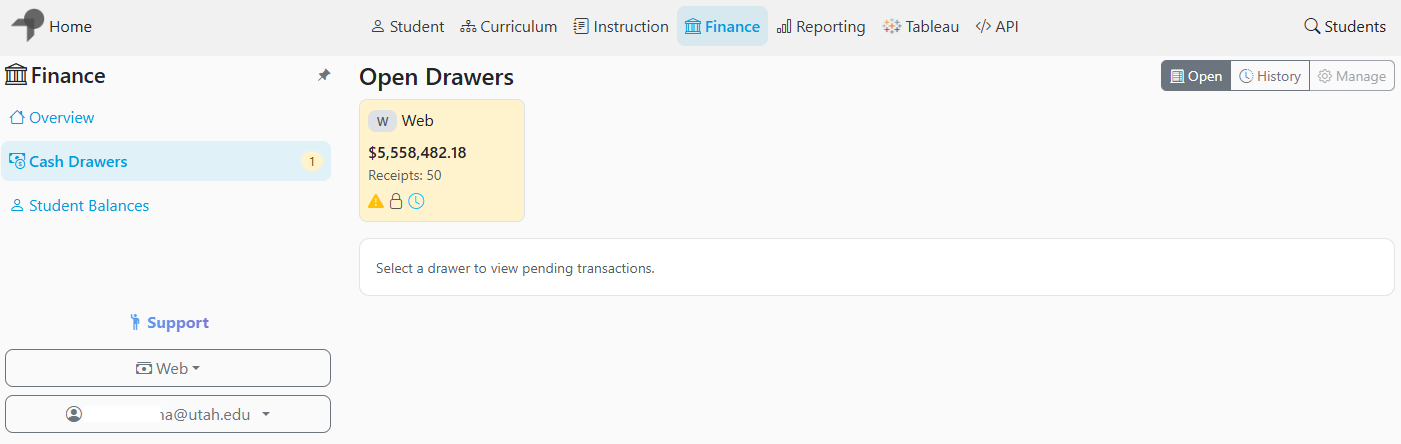
For each open drawer, summary information is displayed, including:
- Current balance
- Number of receipts
- Status indicators and notifications
Additional icons may be displayed to indicate:
- Pending transactions from a previous day
- Drawers that cannot be manually closed (such as system or web drawers)
- Drawers configured to automatically close
These visual indicators help quickly identify drawers that may require attention or have special operating rules.
Once a drawer is selected, all transactions associated with that drawer are displayed in the transaction list below.
Viewing Transactions
Selecting a cash drawer displays the complete list of transactions recorded for that drawer.
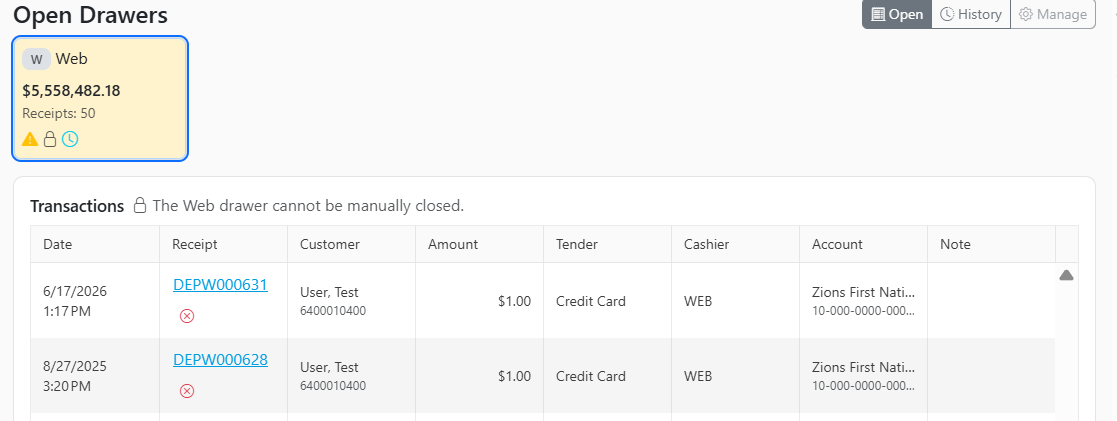
The transaction list includes details such as:
- Transaction date and time
- Receipt number
- Customer information
- Transaction amount
- Tender type
- Cashier
- Account
- Notes
Under the Receipt column, users can perform additional actions:
- Open and view the receipt in a new window
- Void the transaction when appropriate permissions are available
This allows users to quickly review payment details and manage individual transactions without leaving the page.
Drawer History
The History tab provides access to previously closed cash drawer batches.
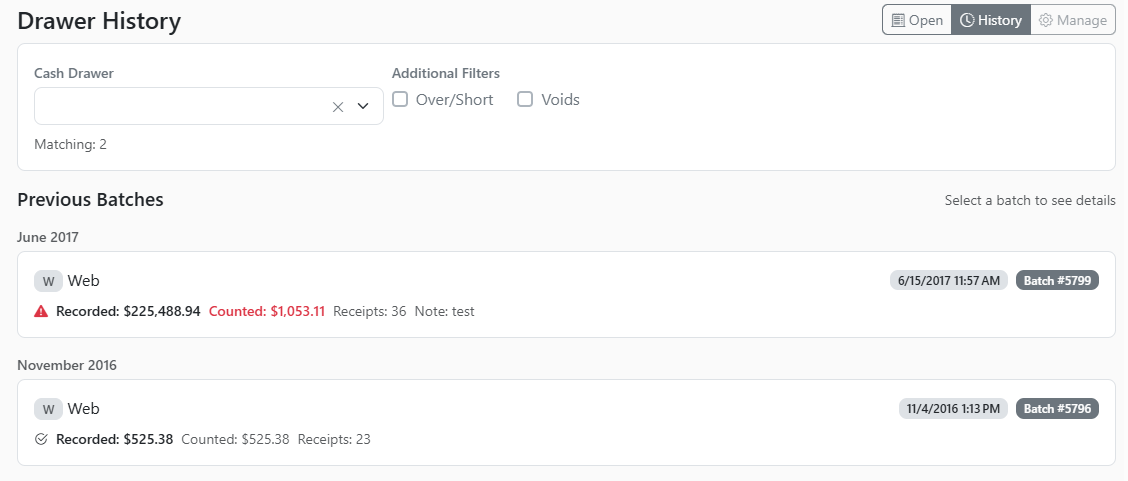
To review historical cash drawer activity:
- Select the History tab.
- Choose a Cash Drawer from the drop-down list.
Additional filters include:
- Over/Short batches
- Voids
This page displays all matching batches for the selected drawer.
Previous Batch
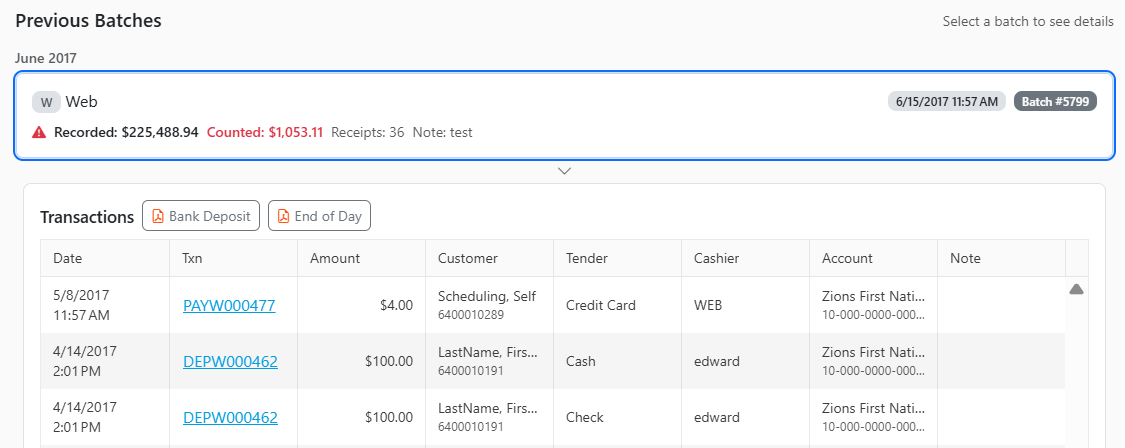
The Previous Batches section provides summary of historical drawer batches.
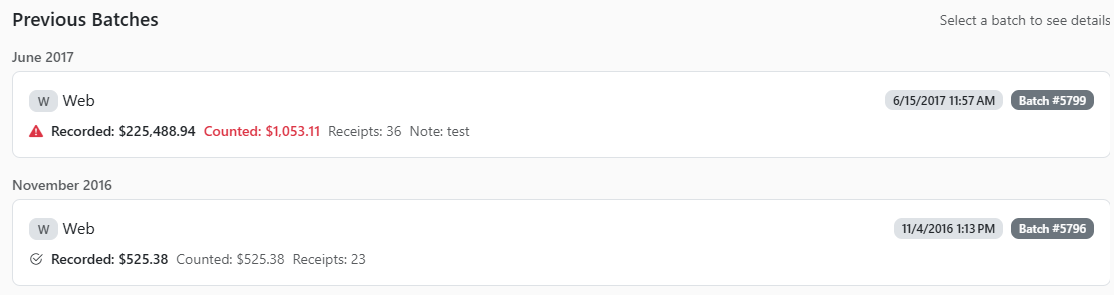
For each batch, the following information is displayed:
- Recorded total
- Counted total
- Receipt count
- Batch notes
- Batch number
- Date and time the batch was closed
Differences between the recorded and counted amounts are highlighted, helping users quickly identify batches that may require review.
To view detailed information for a batch, select the desired batch from the list.
Batch Transactions
After selecting a batch, all transactions associated with that batch are displayed.
This detailed view allows users to:
- Review transaction activity included in the batch
- Verify receipt totals
- Research historical payments
- Investigate discrepancies between recorded and counted amounts
The batch transaction view provides quick access to the supporting records used to create the batch totals.
Reports
When viewing a batch, quick links are available to commonly used finance reports, including:
- Bank Deposit Report
- End of Day Report
These reports can be accessed directly from the batch details, providing a convenient way to review and reconcile cash drawer activity.
Share Feedback
If you have questions, comments or feature suggestions, please submit them using the following form: https://forms.office.com/r/NreuhQX1Df or send an email to support@northstarmis.org
Your feedback is essential in helping us improve the new Northstar experience. Thank you for your support and participation!