Northstar V3: Report History
Introduction
The Report History page, located under the Reports category, provides a centralized location for viewing and managing reports that you have generated. Every time you generate a report, a copy is saved to your account, making it easy to access the report again without having to rerun it.
Reports history is tied to you user account rather than a specific device, allowing you to access your previously generated reports from any location where you sign in. The page also provides tools for managing report retention, saving important reports, sharing reports with other users when needed.
By default, generated reports remain available for 7 days before automatically expiring and being removed. Reports that need to be retained longer can be individually saved to prevent expiration.
Getting started
To access Report History:
- Navigate to Reports
- Select History from the navigation menu
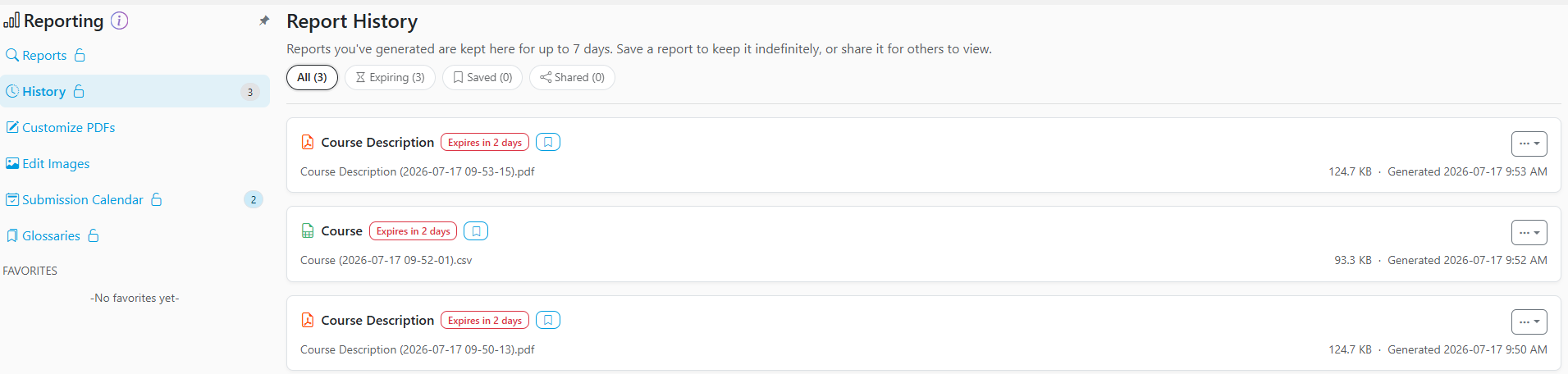
The Reports History page displays all reports that have been generated and are currently available in your account. .
History Filters
At the top of the page, several filter options help organize and locate reports:
- All - Displays all reports currently available in your history.
- Expiring - Displays all reports that are scheduled to expire within the retention period.
- Saved - Displays reports that have been marked for permanent retention.
- Shared - Displays reports that have been shared with other users.
The number displayed beside each filter indicates how many reports currently fall within that category.

Report List
Each report entry provides important information about the generated report, including:
- Report Name
- File Type (PDF, CSV, etc.)
- File Size
- Date and Time Generated
- Expiration Status
Reports nearing expiration display a notification such as "Expires in 2 days", helping users identify reports that my need to be saved before they are removed.
Note: Reports stored in the History page are snapshots of the data at the time the report was generated. Opening a report from history does not rerun the report or refresh the data.

Saving Reports
By default, reports are automatically removed after 7 days.
To prevent a report from expiring:
- Locate the report in the history list.
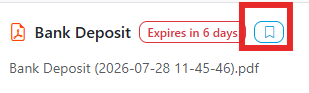
- Select the Save icon (bookmark).
- The report will be moved to the Saved category and will no longer expire automatically.
- Saving reports is recommended for documents that need to be referenced regularly or retained for compliance and record-keeping purposes.
Managing Shared Reports
The report History page can also be used to manage reports that have been shared with other users.
Shared reports can be viewed using the Shared filter, allowing you to:
- Review reports you have shared.
- Access reports that have been made available to you.
- Monitor shared reporting activity from a centralized location.
Additional Report Actions
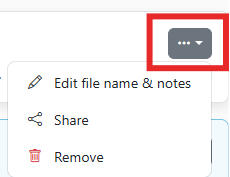
Each report includes an Actions menu (three-dot menu) that provides access to additional options for managing the report.
Depending on permissions and report type, available actions may include:
- Editing file name & notes
- Sharing the report
- Removing the report from history
Share Feedback
If you have questions, comments or feature suggestions, please submit them using the following form: https://forms.office.com/r/NreuhQX1Df or send an email to support@northstarmis.org
Your feedback is essential in helping us improve the new Northstar experience. Thank you for your support and participation!