Northstar V3: Course Activity
Introduction
The Course Activity page provides a centralized view of student enrollment and completion activity for courses within the Instructional Management section. This page allows users to monitor course progress, identify students with incomplete sign-offs, and track scheduling activity - helping instructors and administrators manage course workflows more effectively.
Getting Started
To access Course Activity, navigate to the Instruction category and select Course Activity.
At the top of the page, you can search for a specific student or filter results using available fields, including:
- Course selection
- Transcript filters
- Schedule filters
You can also apply Quick filters to refine results more efficiently.

Filtering Course Activity
The Course Activity page includes several filter options to help you quickly identify specific groups of students:
- No activity in last 7 days - Displays student who have not had recent activity
- Has Pending Self Schedule - Displays students who have been invited to self-schedule into their next course but have not yet completed the process.
- Has Incomplete Sign-Off - Displays student whose scheduled end date has passed but course completion has not been finalized.
These filters are especially useful for identifying students who may need follow-up or additional support.
Course Activity Overview
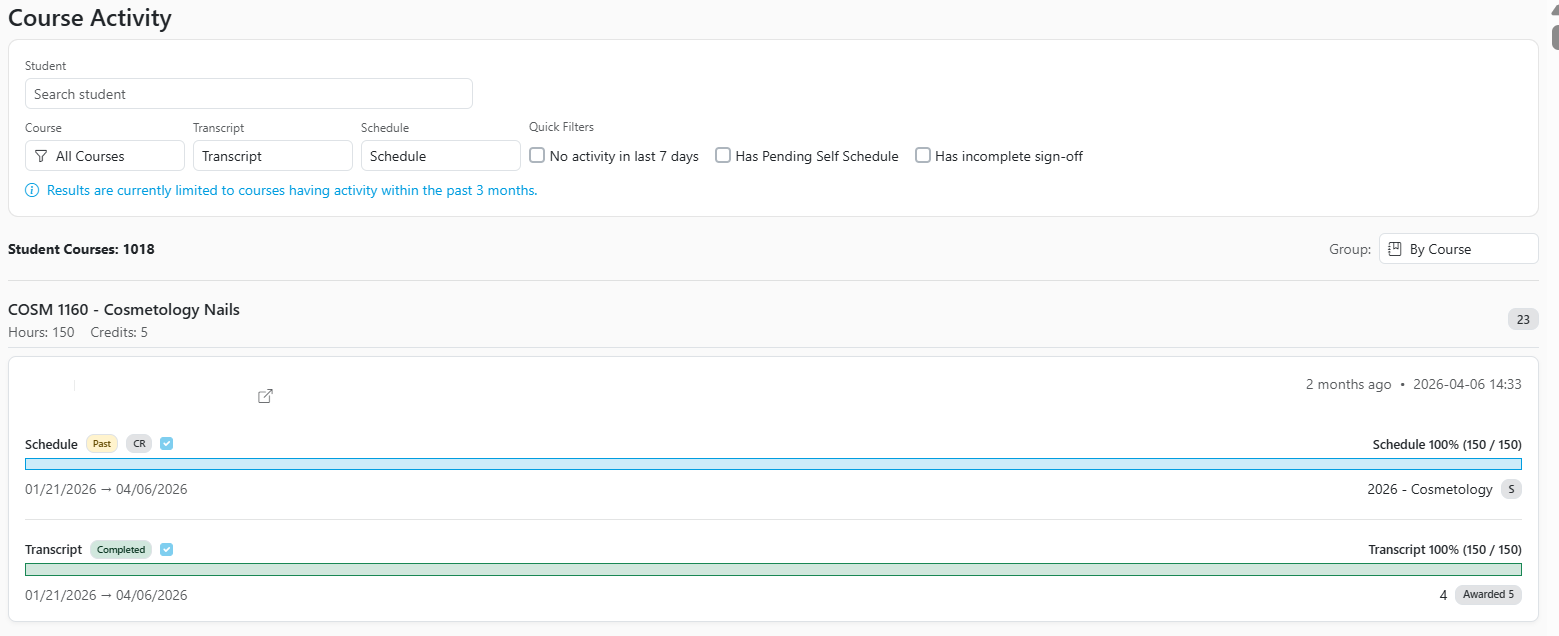
The results section displays student course activity grouped either by course or by student, depending on your selection. The screenshot shows grouping by course, with each course section displaying:
- Course name and identifier (e.g., COSM 1160 -Cosmetology Nails)
- Required hours and credits
- Total number of student course records
Each student entry within the course includes detailed progress indicators.
Understanding Course Details
For each student, the page provides two primary sections:
Schedule
The Schedule bar displays the student's schedule progress for the course, including:
- Start and end dates (e.g., 01/21/2026-04/06/2026)
- Completion percentage (e.g., 100% (150/150 hours) or 62% (93/150))
- Status Indicators such as Active or Past
This helps track how far the student has progressed based on scheduled hours.

Transcript
The Transcript section reflects the student's recorded progress and completion status, including:
- Completion percentage
- Final grade or score (if applicable)
- Status such as Completed or Ready
Completed courses will show full completion (e.g., 100%) along with awarded credits.

Additional Indicators
The page also includes helpful indicators and labels, such as:
- No activity (7 days) - Highlights students who have not been active recently
- Awarded Credits - Displays credits earned upon course completion
- Timestamps - Shows when activity or updates last occurred
These details help provide quick insight into student engagement and progress.
Grouping Options
You can change how the data is displayed using the Group option:
- By Course - Groups students under each course (default view)
- By Student - Groups all course activity under individual students
This flexibility allows users to view data based on their workflow needs.
Share Feedback
If you have questions, comments or feature suggestions, please submit them using the following form: https://forms.office.com/r/NreuhQX1Df or send an email to support@northstarmis.org
Your feedback is essential in helping us improve the new Northstar experience. Thank you for your support and participation!