Northstar V3: Student Notes
Introduction
The Student Notes feature allows users to record important information directly within a student's record. Notes can be used to document a wide range of situations, such as leave of absence, missing admission documents, or other relevant updates. This ensures that key information is accessible and visible to appropriate users across the system.
Creating a Student Note
Getting Started
Begin by locating the student using the Student Lookup panel. Once the student record is open, select Notes from the left navigation panel to access the Student Notes page.
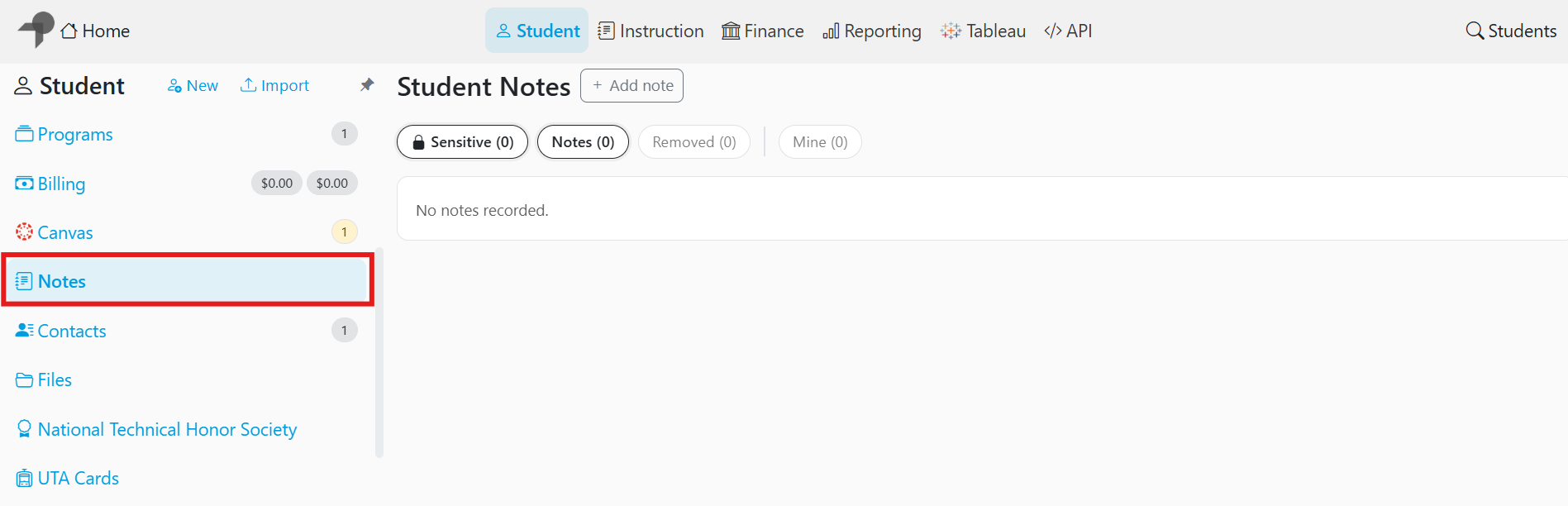
To create a new note:
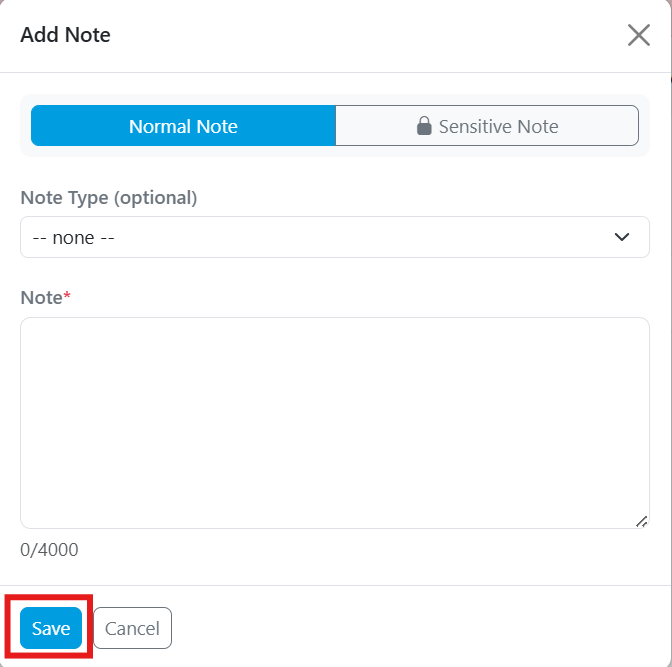
- Select the Add Note button.
- Choose the note type:
- Normal Note
- Sensitive Note
- (Optional) Select a Note Type to further categorize the entry.
- Enter the note details.
- Select Save to create the note.
Note Types and Visibility
- Normal Notes are visible to users based on standard permissions.
- Sensitive Notes have restricted visibility, which is configured by system administrators. Additional optional fields - such as associated program or note type - may be available when creating a sensitive note.
Managing Notes
Once a note is created, it cannot be edited. If updates are needed, the original note may be removed and a new note can be created with the correct information.
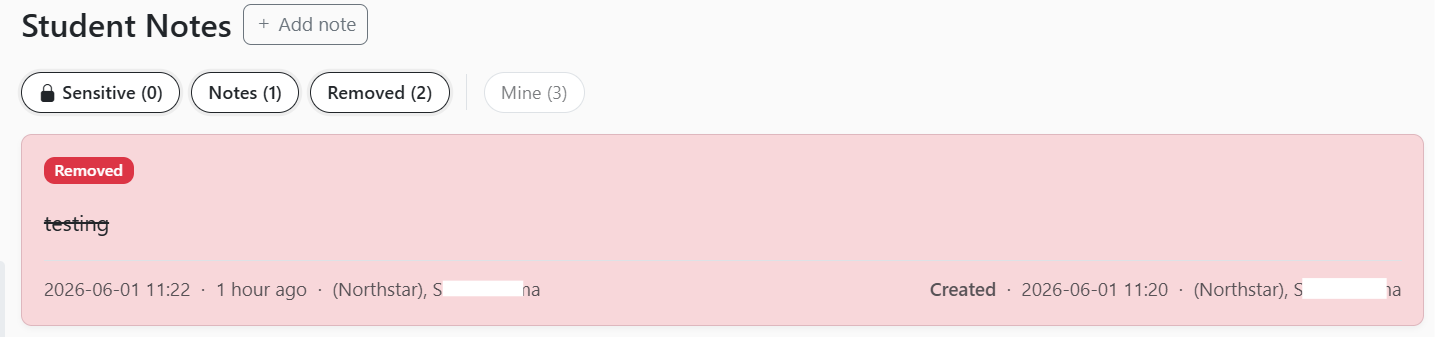
All notes include system-generated details such as:
- Date and time of creation
- User who created the note
- Removal history, if applicable
Removed notes remain visible in the list for audit purposes and are clearly marked as Removed, but they cannot be edited.
Share Feedback
If you have questions, comments or feature suggestions, please submit them using the following form: https://forms.office.com/r/NreuhQX1Df or send an email to support@northstarmis.org
Your feedback is essential in helping us improve the new Northstar experience. Thank you for your support and participation!