Northstar V3: Enter Grades
Introduction
The Gradebook provides a centralized view of student academic performance across courses and terms. Instructors and administrators can review enrolled and attended hours, grades, and key demographic indicators using flexible filters such as district, term, course and instructor.
Getting Started
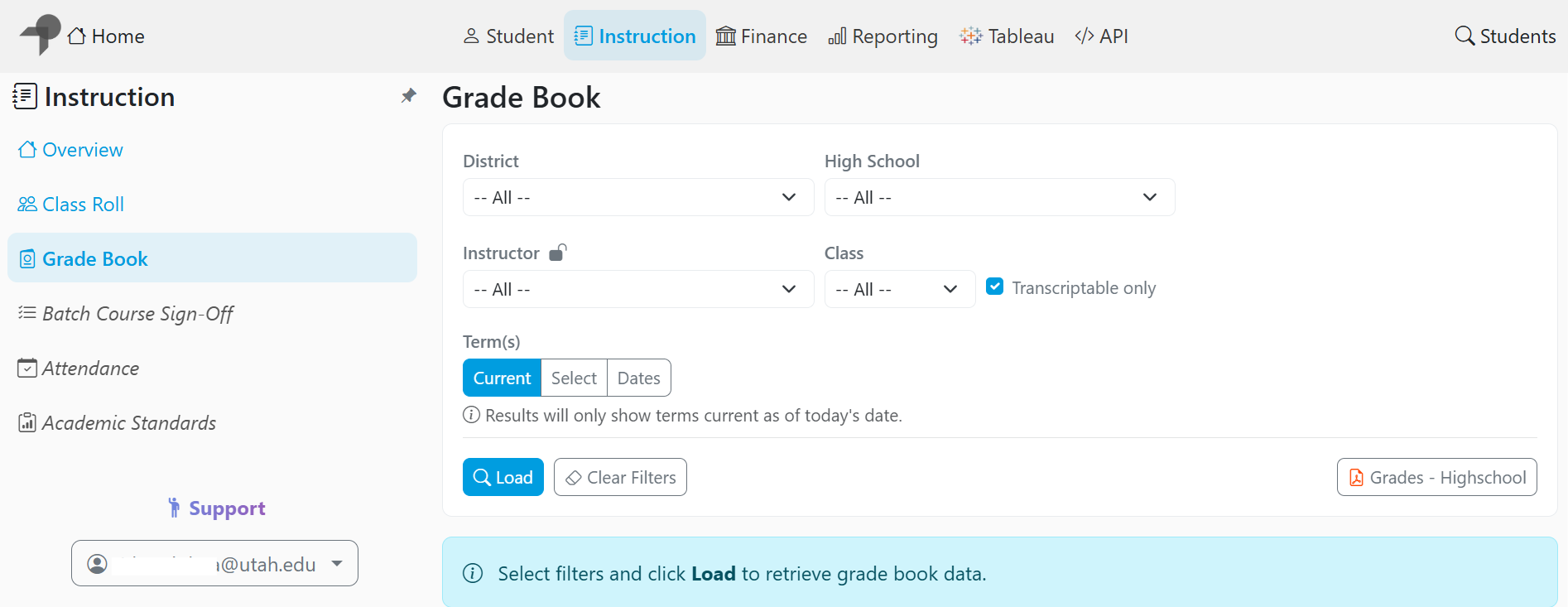
- Navigate to the Instruction category.
- Open the Grade Book page.
- Select the appropriate District, High School, Instructor, or Class.
Term Selection
- If Current is selected, results will only display terms that are active as of today's date.
- To view specific terms, click Select, then choose the desired term(s).
Date Range
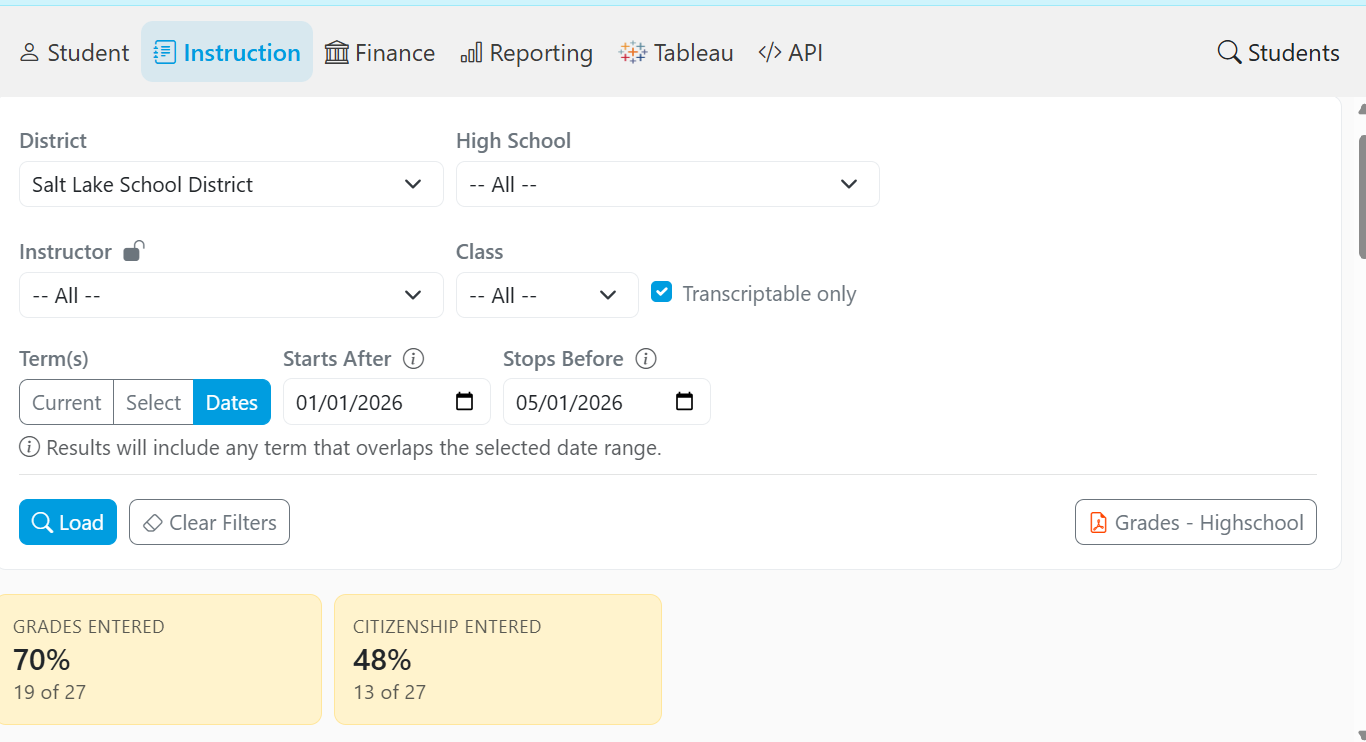
- Use the date option to define a range based on student Start and Stop dates.
- After applying all filters, select Load to retrieve all Gradebook data.
Entering Grades and Citizenship
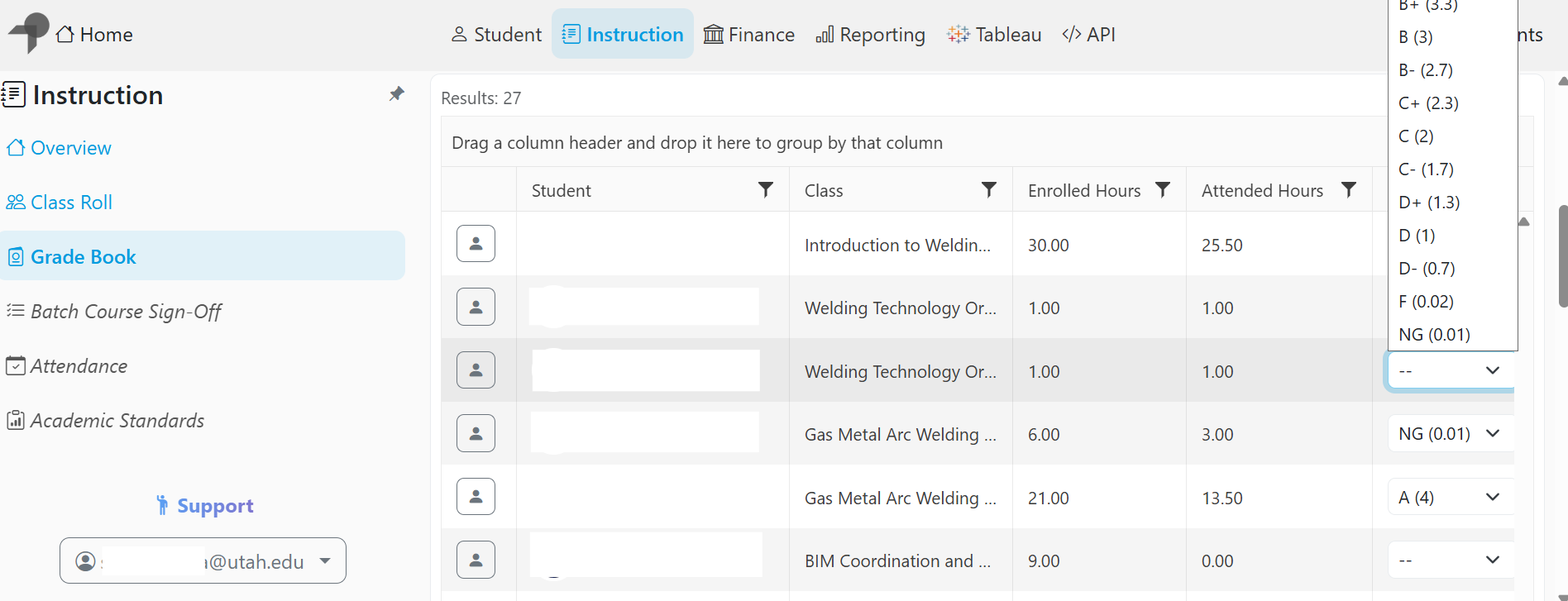
- Once the results load, the student list will display along with the percentage of grades and citizenship entries completed.
- Locate the student for whom you want to enter or update information.
- Select the appropriate Grade or Citizenship value.
- Click Save to apply your changes.
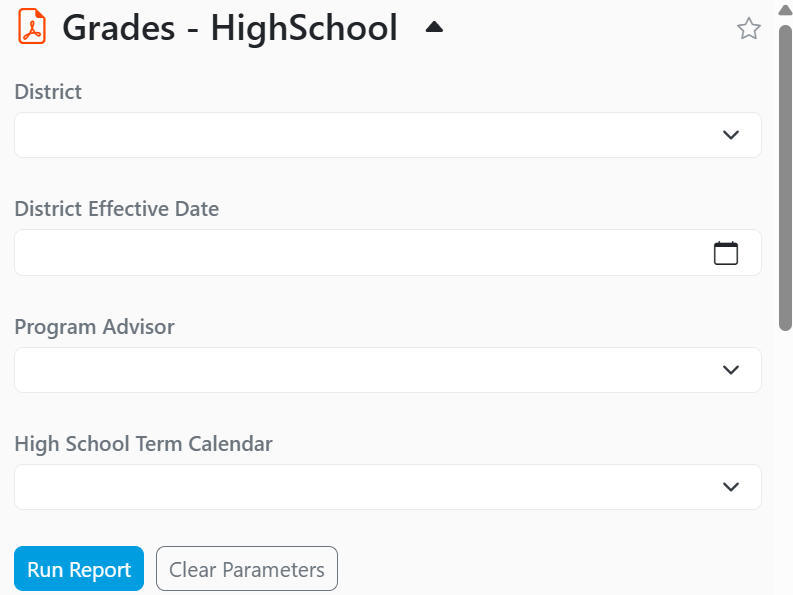
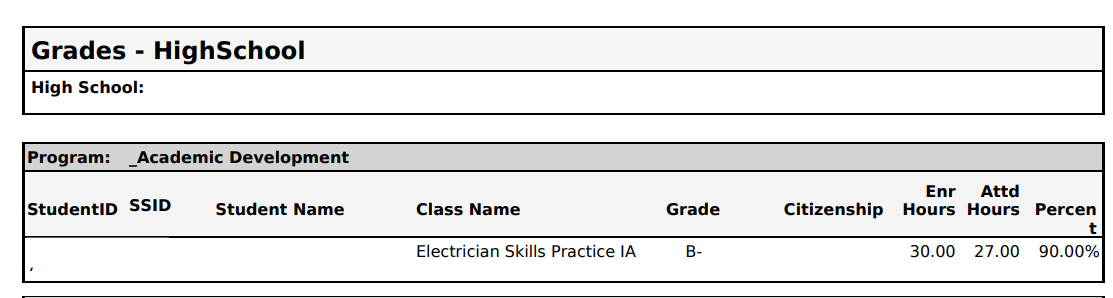
Grades- Highschool Report
The Grades-Highschool report is available directly on the Grade Book page. This report provides a historical view of student grades based on the selected search parameters.
Share Feedback
If you have questions, comments or feature suggestions, please submit them using the following form: https://forms.office.com/r/NreuhQX1Df or send an email to support@northstarmis.org
Your feedback is essential in helping us improve the new Northstar experience. Thank you for your support and participation!