Northstar V3: Advanced Search
Introduction
The advanced search feature allows you to efficiently locate groups of students based on specific criteria. In addition to running tailored searches, you can save your searches for future use or share them with other users to support collaboration and consistency.
Getting Started
The advanced search option is available within the Student Lookup panel.

Use the available filters to create a customized search that returns students who meet your selected criteria.

Once results are loaded, use options under the Actions column to:
- Select the student account in student panel or
-
Open the student's dashboard in a new window
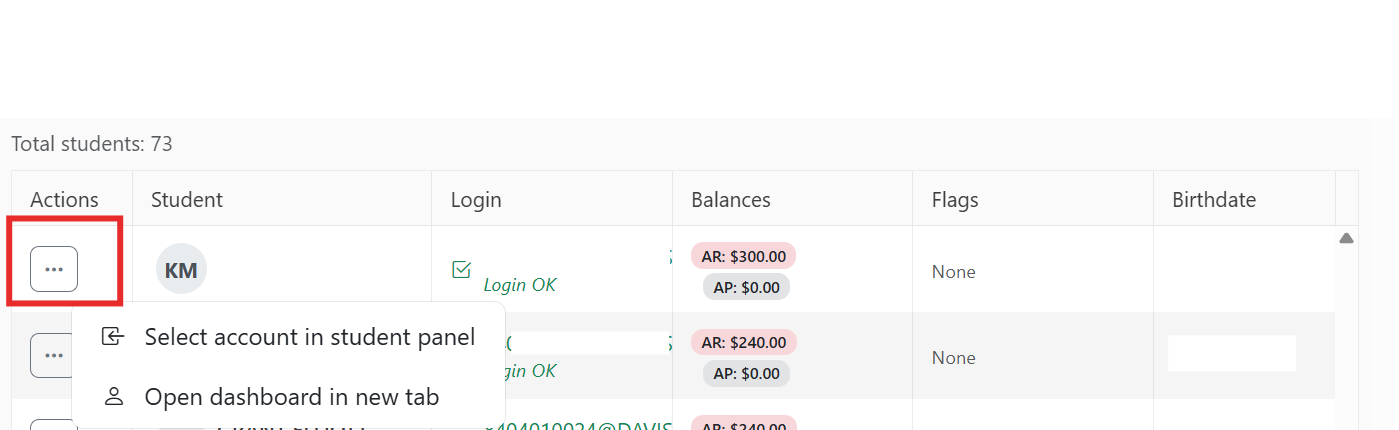
Note: if you do not open the student dashboard in a new window, you will need to return to the advanced search page to reload the same search results.
Saving and Sharing Searches
After search results are displayed, the Save Search option becomes available.

You may save the search for personal use or make it available for other users to run. Another quick way to share your search results is by using the Link button. This action copies the URL for the search page, allowing you to share the search directly with other users.

Once a search is saved, a blue banner appears at the top of the page, providing options to edit, delete, or close the saved search. All saved and shared searches are listed in the Saved Searches panel for easy access.

Edits made to shared searches you own will be automatically updated for users who have favorited your search.
The number displayed next to each saved search represents the current result count, allowing you to quickly understand how many students match the search criteria.

Share Feedback
If you have questions, comments or feature suggestions, please submit them using the following form: https://forms.office.com/r/NreuhQX1Df or send an email to support@northstarmis.org
Your feedback is essential in helping us improve the new Northstar experience. Thank you for your support and participation!