Northstar V3 Overview: Student Management
Introduction
The student management section of Northstar provides streamlined tools to efficiently search for, manage, and review student information. With enhanced search capabilities, intuitive dashboards, and integrated tools, you can quickly access student records, monitor progress, manage files, and perform key actions - all from a single, modern web experience. These features are designed to improve visibility, reduce navigation, and support day-to-day student management tasks with ease.
In this release, you can:
- Search for an individual student
- Manually create a new student account
- Batch import student accounts
- Upload and manage student documents
- Create student notes and contacts
- View student program and course data
- Add fees to a student account
- Review student login and activity history
- View student Canvas summary information
- Run student-related reports
Page Navigation And Access Indicators
Not all pages in Version 3 are complete, and not all completed pages are available to every role. During early testing and preview phases, the system intentionally exposes additional context to help users become familiar with new functionality. As development progresses, this behavior will be refined and access will be more tightly aligned with role-based permissions.
In the navigation menu, page availability is indicated using visual cues:
|
|
Blue links indicate pages that are enabled, have content, and are available to your role. |
|
|
A closed black lock icon indicates that the page has content but your current role does have have permission to access it. |
|
|
An open lock icon indicates that the page currently does not have a corresponding legacy permission restricting access. |
|
|
Disabled links without a lock icon represent placeholder pages that are not yet available to any role. |


Student Search
The Student Lookup feature allows you to quickly locate an individual student using standard search fields. For more advanced needs, the highlighted search button provides enhanced filtering to help you identify groups of students based on specific criteria.
Once a student record is open, the Student Dashboard displays a comprehensive overview of the student's enrollment, tuition, Canvas data, and more.

Student Dashboard
The student dashboard presents a concise summary of key student information, including enrollment status, financial details, demographics, notes, and activity history. From this dashboard, you can create notes, add fees, update contact information, and manage student contacts - all without navigating away from the page.
The dashboard is organized into individual cards, each providing a focused summary of a specific category. Definitions for fields and controls are provided below. If a field or control is not listed, no additional explanation is required.
The example below illustrates the student dashboard and its key features.

| Field or Control | Description |
|---|---|
| New | Manually create a new student. |
| Import | Batch import students using an Excel file. |
|
|
Selecting the student name returns you to the student dashboard. |
|
|
Open student account in Northstar desktop |
| Reports | Run student-related reports. |
| Info | Student demographics. |
| Programs | Student related program data. |
| Billing | Campus Cash, unpaid items, transaction history |
| Canvas | Review summarized Canvas activity and data. |
| Files | Upload and manage files associated with the student record. |
| Edit Flags | Use flags to easily identify students with special circumstances. |


Dashboard Cards
Programs
Displays key program data such as objectives, enrolled hours, completed hours, and overall progress.

Selecting a program provides access to more detailed information and reports such as Student Progress and Completion Evaluation.

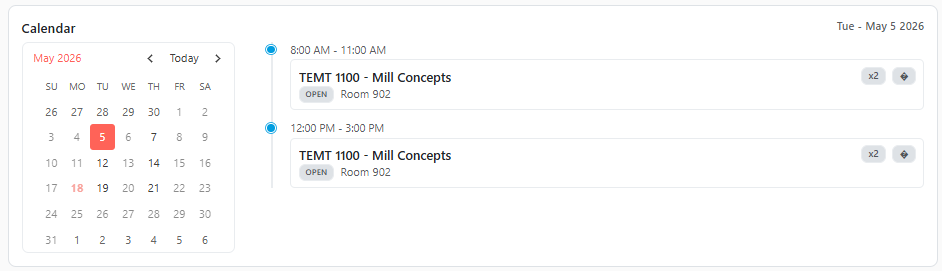
Calendar
Provides a quick view of the student's schedule for the selected date.
Courses
Displays the student's course-level information and progress within the program.

Billing
Lists outstanding billing items associated with the student. This card is visually highlighted to help draw attention to unpaid balances.

Notes
Allows user to view existing notes or create new notes directly from the dashboard.

Contact
Manages student contact and emergency contact information.

Activity
Displays student login and clocking history.

Canvas
Provides a summary view of the student's Canvas data and activity.
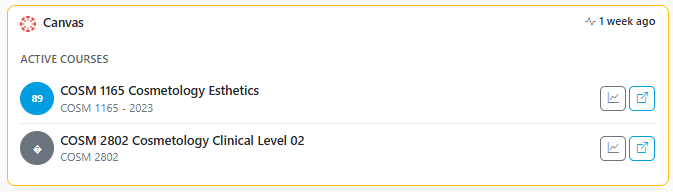
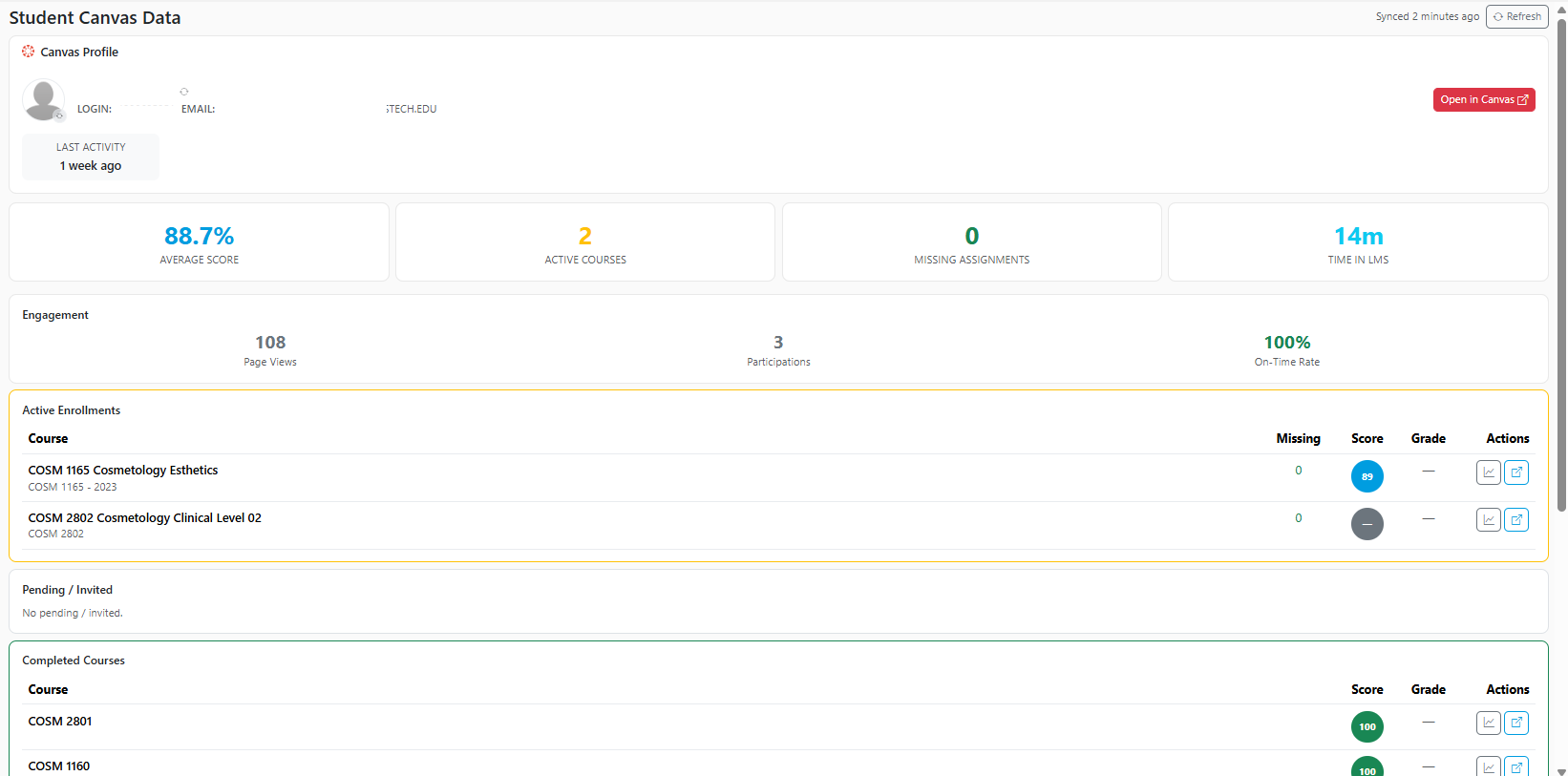
Clicking on the Canvas logo will take you to the Student Canvas data page. This page displays detailed information such as active, enrolled and completed courses, scores, grades and overall engagement metrics including time spent in the LMS.
Key summary indicators at the top of the page - such as Average Score, Active Courses, Missing Assignments, and Time in LMS - give users a quick snapshot of the student's academic progress and grades for easy per-course review.
Direct action links are available to streamline navigation. Users can select Open in Canvas to launch the student's Canvas page or use the course-level actions to go directly to Canvas grade details. A refresh option also allows users to confirm the latest synced Canvas data.
Student Management Summary
The Student Management tools in Northstar Version 3 provide a centralized, efficient way to access and maintain student records. With powerful search options, an intuitive dashboard layout, and integrated student data, users can complete essential tasks quickly and with greater confidence. As additional features become available in future releases, Student Management will continue to expand - further supporting visibility, accuracy, and ease of use across the student lifecycle.
Share Feedback
If you have questions, comments or feature suggestions, please submit them using the following form: https://forms.office.com/r/NreuhQX1Df or send an email to support@northstarmis.org
Your feedback is essential in helping us improve the new Northstar experience. Thank you for your support and participation!